| Home | Product FAQs | Cannot locate an interface...: Windows XP |
EngineCheck & VauxCheck - "Cannot locate an interface..."
(Windows XP)
EngineCheck and VauxCheck version 2.0 and above include an autodetect sequence, which attempts to locate your ELM chipset interface without the need to manually specify any settings.
However in some circumstances you may occasionally see the error message "Cannot locate an interface...":
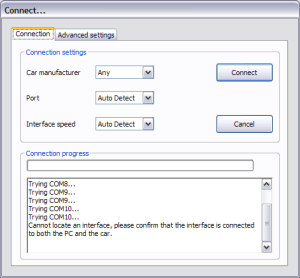
If this happens, it is usually caused by one of three things:
(1) The USB drivers for the interface are not installed or have become corrupted
(2) The interface is not currently connected to the PC and a car
(3) The interface does not respond quickly enough for the autodetect routine to locate it.
There are a few simple steps to diagnose and resolve the issue:
-
Firstly, ensure that the interface cable is connected to both the PC and the car, and that
the car's ignition is turned on (so dashboard lights come on) before attempting to connect
to it.
This is the most common cause, and the easiest to fix!
-
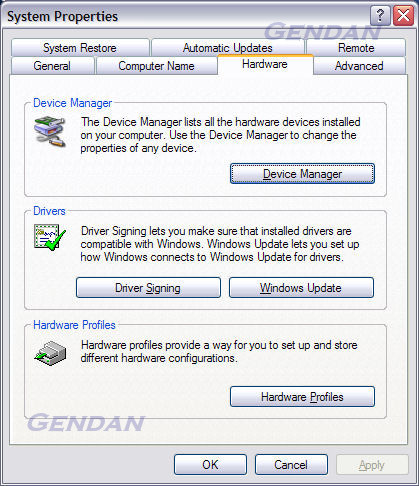
Open the System Properties (located in Control Panel > System)
-
Select the "Hardware" tab and click "Device Manager"
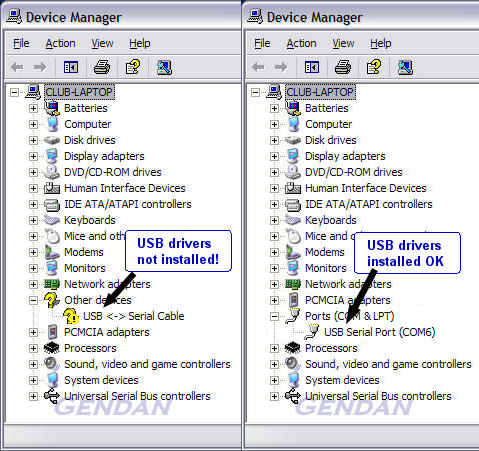
Under the "Ports (COM & LPT)" section you should see a device labelled "USB Serial Port". If so, the drivers are correctly installed.
However, if you see a device in the "Other devices" section, labelled "USB <-> Serial Cable" with a question mark against it, this signifies the drivers failed to install correctly:
-
If the drivers are NOT installed correctly, try reinstalling them first:
If you purchased your interface from us along with the EngineCheck or VauxCheck software, then look in the folder in which you installed the software
(usually C:\Program Files\EngineCheck or C:\Program Files\VauxCheck)
- There should be file named "elminstall.exe"
- Run that file to reinstall the drivers
- If you cannot locate the file, you can download the same drivers from here.
If you purchased your interface from another retailer, our USB drivers may not work for you, in which case you need to contact the retailer or manufacturer to obtain updated drivers.
-
If the drivers ARE installed correctly, but EngineCheck / VauxCheck still cannot
locate the interface, it usually means that the interface is not responding quickly
enough for the autodetect to notice it. To get around this issue, you may need to specify the
port on which it is located.
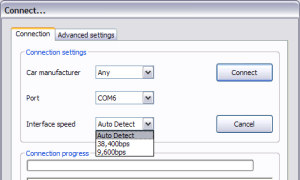
- Check in Device Manager which COM port your interface is using (in the screenshot above it is COM6), and select it when connecting.
- Depending on your specific interface, you may also need to select the correct interface speed:
If none of these steps help resolve your issue, please contact us while you are plugged into a car, and we will do our best to resolve the issue.
