| Home | Product FAQs | ELM Chipset Bluetooth Interfaces: IVT BlueSoleil |
ELM Chipset Bluetooth Interfaces:
IVT BlueSoleil Setup Guide
Our ELM327 Bluetooth interfaces are supplied with instructions on connecting to the PC when using the Windows Bluetooth components. However with a lot of USB Bluetooth "dongle" devices, you may need to use the IVT BlueSoleil software instead.
Interface setup is still very straightforward, and comprises 3 stages:
- Install your Bluetooth adaptor and the BlueSoleil software
- Connect to the Bluetooth diagnostic interface and create a Bluetooth serial port
- Connect to the port in the EngineCheck software
Stage 1: Install your Bluetooth adaptor and the BlueSoleil software
Due to the wide variety of different Bluetooth products available we can't guide you through this part of the process. Please follow the instructions that came with your Bluetooth adaptor.
Stage 2: Connect to the diagnostic interface
Note: screenshots shown from Windows XP - Other versions of Windows may look slightly different, but the process will be the same.
-
Ensure your Bluetooth adaptor is connected to the PC and the diagnostic interface is connected
to the car, within range of the PC. Then open the BlueSoleil Software.
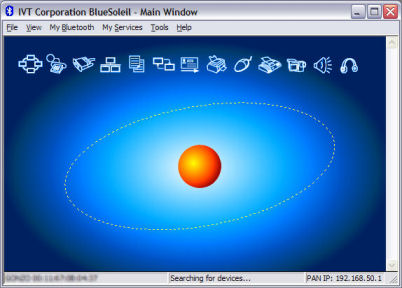
You should be presented with a screen like this:
-
Click once on the globe in the middle of the screen, and BlueSoleil will begin to search for
devices. Initially it should find the hardware ID of your interface...
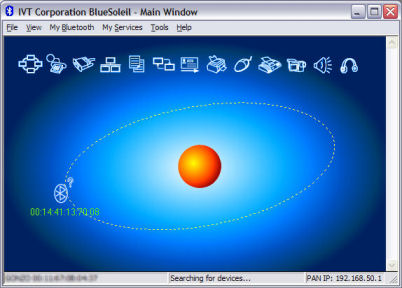
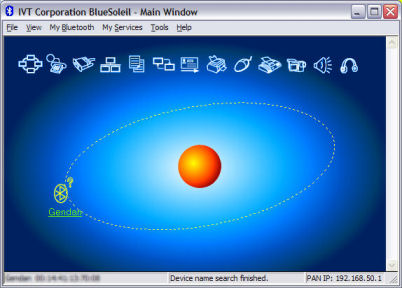
...then after a few seconds it should discover the device name:
-
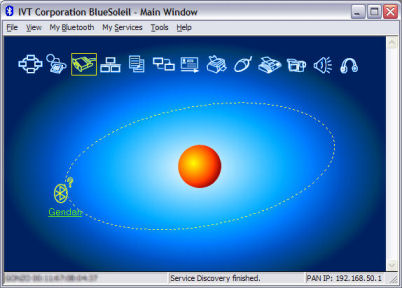
Double-click on the "Gendan" device - BlueSoleil will then discover the Bluetooth
'services' offered by the interface.
-
Double-click on the symbol that has turned yellow at the top of the page - the
"Bluetooth Serial Port Service". You will be presented with the
following dialog:
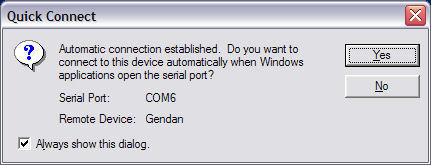
Before clicking any buttons, note down which serial port is being connected - in this case COM6.
If you don't use many different Bluetooth devices on the PC, click "Yes" - this means COM6 will always be the port selected for the diagnostic interface, and will be unavailable to other devices.
If you use lots of different devices, it may worth selecting "No", and just making a note of the port that is chosen each time you connect the diagnostic interface.
-
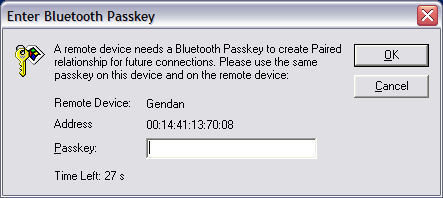
You will then be asked to enter the Bluetooth "Passkey" for the device.
Enter "1234", then click OK.
-
An alert should then pop-up over the Windows system tray, confirming the service has connected:
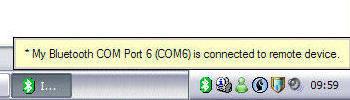
You should now be able to connect to the interface with EngineCheck.
Stage 3: Connect to the port in the EngineCheck software
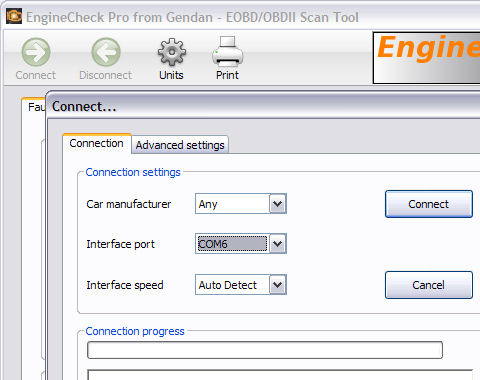
Now the interface is connected, the last thing to do is select the right COM port within the EngineCheck software.
EngineCheck and VauxCheck version 2.0 or later have an auto-detect routine, that can usually automatically locate your interface without the need to specify any settings - just click "Connect" and it will try to discover the interface.
If the software is unable to locate the interface though, you may need to specify the connection settings. In the example above, the Bluetooth serial port was connected on COM6, so just select COM6 on the EngineCheck connection screen.
You may also need to select the interface speed. Gendan ELM327 interfaces operate at the 38,400bps speed, while some of the interfaces available elsewhere may require the slower 9,600bps speed.
You should now be up and running.
If you have any problems, please email us at support@enginecheck.co.uk
